
Project member role
다음은 Project members' ERP사용에 관한 내용입니다.
프로젝트 일원은 ERP사용에 있어서 다음에 주의하여야 합니다.
한글 설명
기본 사항
회사 사번을 부여 받은 사람만이 ERP에 등록가능합니다. 따라서, 프로젝트 멤버는 사용하지 않더라도, 회사 메일(@ls-electric.com)의 메일 주소를 부여 받아야 합니다.
[주의 사항]
회사 email을 실제로 사용하지 않더라도, 한국 본사에서는 대만 현지의 급여 지급의 기준을 회사 사번(email address)를 기준으로 합니다. 따라서, 회사 email을 발급 받지 않으면, 급여나 기타 활동에 제약이 있습니다. 이것은 대한민국의 법령에 의하기도 합니다.
- 참고 사항 - e-mail address
e-mail address에 대한 부분 명칭을 구분합니다.
e-mail address는 다음과 같이 구성됩니다.
e-mail address : 본인(e-mail)ID @ 회사주소 (Domain name) 혹은 Personal ID @ Domain ID
따라서, 이후 e-mail ID라고 말하는 것은 personal ID를 지칭하는 것이며, 이는 회사의 사번이 됩니다.
예를 들어, iamhere_01@ls-electric.com인 경우에, e-mail ID는 iamhere_01이 메일ID가 됩니다.
앞서 이야기한 사번은 바로 e-mail ID를 말합니다.
- 대만 ERP의 ID
대만 ERP에서 사용하는 ID는 회사에서 부여한 e-mail address에서 e-mail ID를 사용합니다. 따라서, 회사에서 e-mail address를 부여 받으면, TW ERP에 접속 가능한지 확인해야 합니다.
만약 ERP에 접속이 불가한 경우라면?
본인 프로젝트의 회계담당자(Account Manager) 혹은 PM(Porject Manager)에게 문의하시기 바랍니다. 초기 암호 역시 회계담당자와 PM에게 확인하십시오.
ERP 로그인
1. ERP에 접속하기
회사 번호를 부여 받으면, 해당 번호를 이용하여, ERP에 접속합니다.
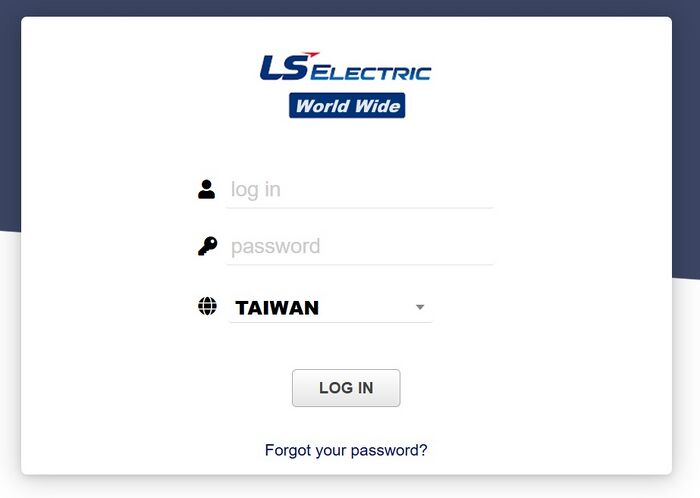
2. 본인의 ID와 Password를 입력하고 로그인이 되는지 확인합니다.
부여받은 사번(e-mail ID)를 입력하고 LOG IN 버튼을 누르고, 진입합니다.
초기 비밀번호는 PM 혹은 회계담당자를 통하여 받습니다.
- 본인의 암호를 잊어버린 경우 - 본인이 직접 재발급 받습니다.

하단의 링크로 접속하여, 본인이 등록한 e-mail 주소로 새로운 암호를 발급 받습니다.
본인정보 확인
정상적으로 로그인이 된 경우는 다음과 같은 화면이 보입니다.
처음 로그인하거나, 본인의 정보를 수정하는 경우에는 login Information에서 user에서 본인을 클릭합니다.

Working Group 확인
본인에게 부여된 ERP 권한이 맞는지 확인해야 합니다. 기본적으로 24가지 권한이 부여됩니다. 혹시 0이거나 10이하의 권한이 부여된 경우는 PM혹은 Account Manager에게 확인하십시오.

- 본인의 Group확인하기 - PWO
브라우저를 스크롤하여 밑으로 내리면, 그룹을 확인할 수 있습니다.
PWO 그룹으로 할당된 일반 프로젝트 멤버는 PWO입니다.
PWO 그룹은 현재, ERP에서 24개의 권한이 부여되어 있습니다.
참고
* ERP_PM : 프로젝트 매니저의 ERP 그룹입니다.
* PSO : 각 프로젝트의 회계담당자 그룹입니다.

본인 정보 확인 및 수정 (암호변경)
본인의 정보를 확인하거나 (암호변경) 수정할 경우는 자신의 메뉴에서 수정버튼을 누르고 수정한다.

- 확인할 사항 - 본인의 Accouting Code (프로젝트 코드명)를 확인해야 한다.
만약 빈칸으로 있는 경우, 회계담당자(Account Manager)에게 수정을 요청한다.
* check list
 (1) 본인의 Accouting Code : 회계코드 (tag와 다름) - 공란이면 안된다.
 (2) Tag : 본인이 포함되어 있는 프로젝트를 선택하여 넣을 것, 직접 수정이 가능하다. (단, 다른 프로젝트를 선택할 경우, 비용처리 경우, 다른 그룹으로 PM 결재 안됨)
 (3) 암호 변경 - 초기 접속 후, 반드시 암호 변경
 (4) e-mail address : 실제 사용하는 e-mail 주소를 사용할 것 (결재 상황이나, 기타 시스템 메시지 수신)
(1), (2)번의 경우, 팀의 회계담당자에게 요청해야 됩니다. (3), (4)번은 처음 접속 후에 수정 완료 해야 합니다.
특히 (4) e-mail address는 실제 사용하는 메일로 본인이 메일을 확인할 수 있어야 합니다. PM의 결재 혹은 반려 사항에 대해 ERP에서 메일로 결과나 과정을 전송하므로, 자주 사용하는 메일을 사용해야 합니다. 부여 받은 회사 메일을 그대로 사용해도 됩니다. 하지만, 결재나 기타 사항에 대한 메일 수신이 되지 않으면, 본인에게 불이익이 있을 수 있습니다.
- 추가적으로 본인의 사진이나, 전화번호를 입력해도 됩니다.

English Explanation
Basic Information
Only individuals who have been assigned a company employee number can be registered in the ERP system. Therefore, project members must be assigned a company email address (@ls-electric.com), even if they do not actively use it.
[Notice]
Even if you do not actively use the company email, the Korea headquarters uses the company employee number (email address) as the basis for salary payments in Taiwan. Therefore, if you do not receive a company email, there will be restrictions on salary and other activities. This is also in accordance with the laws of the Republic of Korea.
- Reference - e-mail address
We distinguish the components of an e-mail address.
An e-mail address consists of the following:
e-mail address: Your (e-mail) ID @ Company domain name or Personal ID @ Domain ID
Therefore, when we refer to e-mail ID, it means the personal ID, which is your company employee number.
For example, if the address is iamhere_01@ls-electric.com, the e-mail ID is iamhere_01, which is the mail ID.
The previously mentioned employee number refers to the e-mail ID.
- Taiwan ERP ID
The ID used in Taiwan ERP is the e-mail ID from the company-assigned e-mail address. Therefore, after receiving your company e-mail address, you must check whether you can access TW ERP.
If you cannot access ERP:
Please contact your project’s Account Manager or PM (Project Manager). The initial password should also be confirmed with the Account Manager or PM.
ERP Login
1. Access ERP
Once you have been assigned a company number, use it to log in to ERP.
2. Enter your ID and password and confirm that you can log in.
Enter your assigned employee number (e-mail ID) and click the LOG IN button to proceed.
The initial password will be provided by your PM or Account Manager.
- If you forget your password - you can reset it yourself.
Access the link below and issue a new password using the e-mail address you registered.
Verify Your Information
If you log in successfully, you will see the following screen.
When logging in for the first time or modifying your information, click your user name in Login Information.
Check Working Group
You must verify that the ERP permissions assigned to you are correct. By default, 24 permissions are granted. If your permissions are 0 or 10 or less, contact your PM or Account Manager.
- Check your Group - PWO
Scroll down in the browser to check your group.
General project members assigned to the PWO group are PWO.
The PWO group currently has 24 permissions in ERP.
Reference:
* ERP_PM: ERP group for Project Managers.
* PSO: ERP group for Account Managers of each project.
Verify and Edit Your Information (Change Password)
To verify or edit your information (including password changes), click the edit button in your menu.
- Items to check - Your Accounting Code (Project Code Name) must be confirmed.
If it is blank, request modification from your Account Manager.
* Checklist:
 (1) Your Accounting Code: Accounting code (different from tag) - must not be blank.
 (2) Tag: Select and enter the project you belong to; you can edit it directly. (However, if you select another project, cost processing and PM approval will not work.)
 (3) Change password - must be changed after initial login.
 (4) e-mail address: Use the e-mail address you actually use (for approval notifications and system messages).
For (1) and (2), request assistance from your Account Manager. For (3) and (4), complete the changes after your first login.
Especially for (4), the e-mail address must be one you actively check. ERP sends approval or rejection notifications via e-mail, so use an address you frequently check. You may use the company-issued e-mail. However, if you do not receive approval-related messages, it may cause disadvantages.
- You may also enter your photo or phone number additionally.
Chiness Version
基本事項
只有獲得公司員工編號的人員才能註冊於 ERP 系統。因此,專案成員即使不使用,也必須獲得公司電子郵件地址 (@ls-electric.com)。
[注意事項]
即使不實際使用公司電子郵件,韓國總部仍以公司員工編號(電子郵件地址)作為台灣薪資支付的依據。因此,若未獲得公司電子郵件,薪資及其他活動將受到限制。這也符合大韓民國的法律規定。
- 參考事項 - e-mail address
我們區分 e-mail address 的組成部分。
e-mail address 的結構如下:
e-mail address:您的 (e-mail) ID @ 公司網域名稱 或 Personal ID @ Domain ID
因此,之後所稱的 e-mail ID,指的是個人 ID,也就是公司的 員工編號。
例如,iamhere_01@ls-electric.com,則 e-mail ID 為 iamhere_01,即 郵件 ID。
前面提到的 員工編號,即指 e-mail ID。
- 台灣 ERP 的 ID
台灣 ERP 所使用的 ID 為公司分配的 e-mail address 中的 e-mail ID。因此,獲得公司 e-mail address 後,必須確認是否能登入 TW ERP。
若無法登入 ERP:
請聯絡專案的會計負責人 (Account Manager) 或 PM (Project Manager)。初始密碼也需向會計負責人或 PM 確認。
ERP 登入
1. 進入 ERP
獲得公司編號後,使用該編號登入 ERP。
2. 輸入您的 ID 和密碼,確認是否能登入。
輸入分配的員工編號 (e-mail ID),並按下 LOG IN 按鈕進入。
初始密碼由 PM 或會計負責人提供。
- 若忘記密碼 - 可自行重新設定。
透過下方連結進入,並使用您註冊的 e-mail 地址獲取新密碼。
確認個人資訊
成功登入後,將看到以下畫面。
首次登入或修改個人資訊時,請在 Login Information 中點擊您的使用者名稱。
檢查工作群組
必須確認分配給您的 ERP 權限是否正確。預設授予 24 項權限。若權限為 0 或 10 以下,請聯絡 PM 或會計負責人。
- 檢查您的群組 - PWO
向下捲動瀏覽器以檢查群組。
分配至 PWO 群組的一般專案成員為 PWO。
目前 PWO 群組在 ERP 中擁有 24 項權限。
參考:
* ERP_PM:專案經理的 ERP 群組。
* PSO:各專案的會計負責人群組。
確認並修改個人資訊(更改密碼)
若需確認或修改個人資訊(包括更改密碼),請在個人選單中點擊修改按鈕。
- 必須確認的事項 - 您的會計代碼(專案代碼名稱)。
若為空白,請向會計負責人提出修改要求。
* 檢查清單:
 (1) 您的會計代碼:會計代碼(與標籤不同)- 不可空白。
 (2) 標籤:選擇並輸入您所屬的專案,可直接修改。(但若選擇其他專案,費用處理及 PM 核准將無法進行。)
 (3) 更改密碼 - 初次登入後必須更改。
 (4) e-mail address:請使用您實際使用的 e-mail 地址(用於核准通知及系統訊息)。
(1)、(2) 項需向會計負責人提出要求。(3)、(4) 項需在首次登入後完成修改。
特別是 (4),e-mail address 必須是您能定期查看的郵件地址。ERP 會透過郵件傳送核准或退回通知,因此請使用常用郵件。您可以使用公司分配的郵件,但若未收到核准相關訊息,可能會造成不利影響。
- 您也可以額外輸入您的照片或電話號碼。